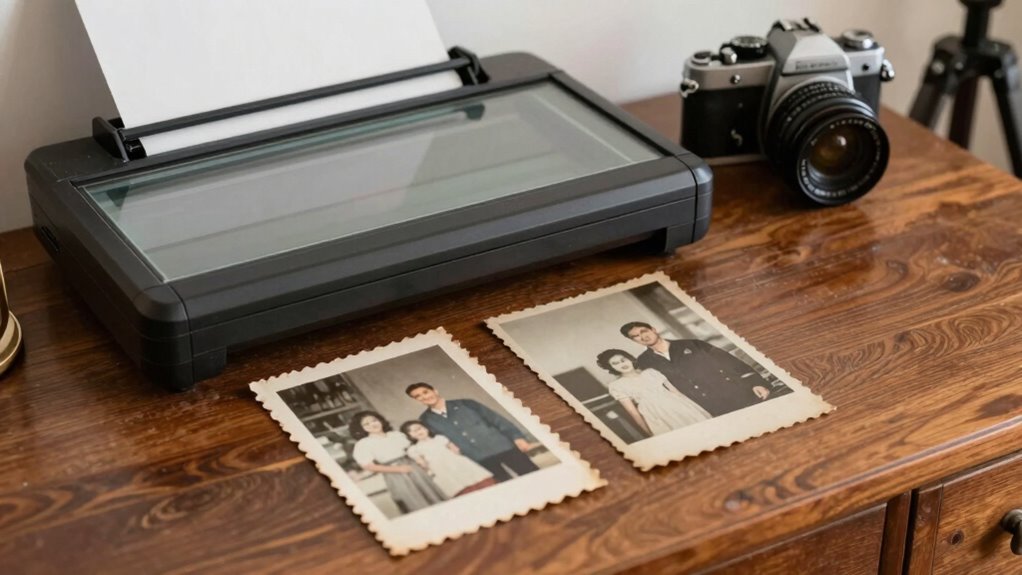
To digitize old family photos without losing quality, use a high-resolution scanner set between 300-600 dpi to capture every detail clearly. Avoid compression during scanning and choose settings that conserve sharpness. Afterward, enhance the images with photo editing software to restore vibrancy and repair imperfections. Properly organized digital copies with reliable backups ensure your memories are preserved for future generations. Keep going to discover detailed steps for flawless results.
Key Takeaways
- Use a high-resolution scanner (300-600 dpi) to capture all photo details clearly.
- Avoid compressing images during scanning to preserve original quality.
- Utilize photo editing software with repair tools to restore and enhance scanned images.
- Save digital files in lossless formats like TIFF or PNG for maximum quality retention.
- Organize and back up digital copies regularly to prevent data loss and maintain quality over time.
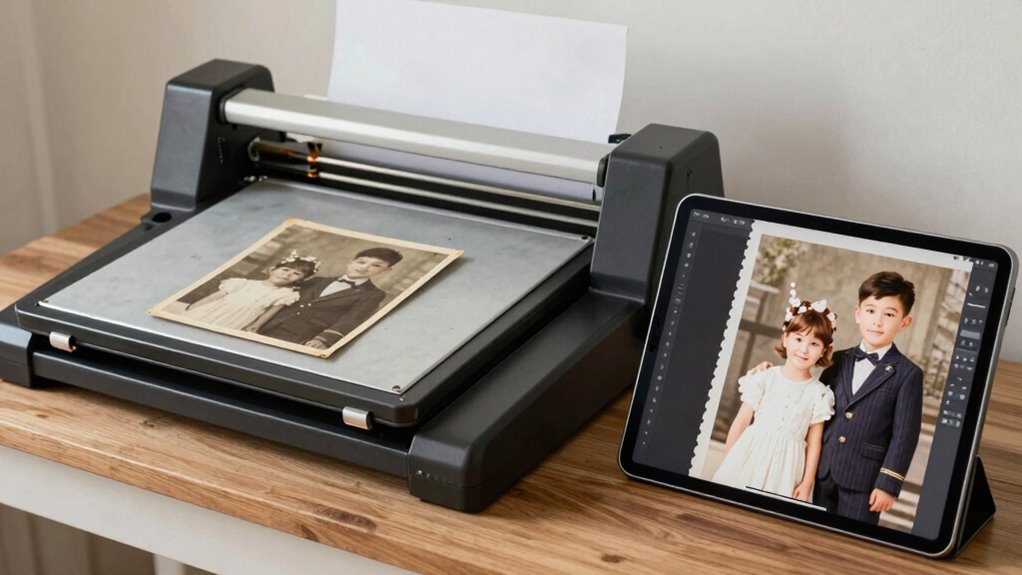
Digitizing old family photos is a meaningful way to preserve your cherished memories for future generations. When you decide to bring those precious images into the digital age, it’s essential to do so without losing their original quality. High-resolution scanning is the first step; you want to ensure your scanner is capable of capturing every detail. Use the highest dpi setting available—typically 300 to 600 dpi—to preserve the sharpness and clarity of each photo. Avoid compressing the images during the scan process, as this can degrade quality. Once scanned, you’ll want to consider photo restoration options if your images have scratches, fading, or tears. Many photo editing programs offer tools to repair and enhance old photos, helping them look as vibrant as when they were first taken. Restoring damaged photos not only improves their appearance but also helps maintain their sentimental value, making sure the memories look just as meaningful for future viewers. Additionally, paying attention to image resolution ensures that your digital copies retain the details necessary for high-quality prints or enlargements.
As you digitize your collection, it’s equally important to think about how you’ll store these digital files. Reliable storage solutions are vital to safeguarding your photos against data loss. Cloud storage services provide accessible, off-site backups, allowing you to retrieve images from anywhere and protect them from hardware failures. Alternatively, external hard drives or solid-state drives offer a physical backup that’s easy to access and manage. Whichever method you choose, verify you create multiple copies and update them regularly. Organizing your digital files into folders by date, event, or family member makes it easier to find specific photos later. Name each file with clear, descriptive titles and consider adding metadata to further improve organization.
To make sure your digital collection stays intact over time, consider investing in photo management software. These tools can help you categorize, tag, and search through thousands of images efficiently. Additionally, maintaining an organized digital archive reduces the risk of losing valuable memories amid clutter. Remember, the key to successful digitization isn’t just capturing high-quality images but also implementing a robust system for storage and maintenance. By doing so, you’re not only preserving your family history but also ensuring it survives for generations to come. Whether you’re planning a complete overhaul or just starting to digitize a few favorites, paying attention to image quality, restoration, and secure storage solutions will make your efforts worthwhile. Your family’s stories deserve to be preserved in the best possible way, and with careful planning, you’ll create a digital legacy that lasts.

Epson Perfection V19 II Color Photo and Document Flatbed Scanner with 4800 dpi Optical Resolution USB Power, High-Rise, Removable Lid
Amazing image clarity and detail — 4800 dpi optical resolution (1), ideal for photo enlargements
As an affiliate, we earn on qualifying purchases.
As an affiliate, we earn on qualifying purchases.
Frequently Asked Questions
What Equipment Is Best for High-Resolution Scanning?
You should choose a high-quality photo scanner that offers a high scanning resolution, ideally 600 dpi or higher, to capture every detail. Flatbed scanners are versatile for various photo sizes and types, while dedicated photo scanners often provide superior quality and faster scanning speeds. Look for models with adjustable settings, color depth, and compatibility with your computer. Investing in the right scanner guarantees your old photos are preserved with excellent clarity.
How Do I Restore Damaged or Faded Photos Digitally?
You can restore damaged or faded photos digitally using photo restoration and digital enhancement tools. While it might seem complex, software like Adobe Photoshop or specialized apps make it manageable. Start by scanning your photo at high resolution, then use features like spot healing, color correction, and contrast adjustment to repair tears, fades, or discoloration. These techniques revitalize your images, preserving memories with professional-quality results.
What File Formats Should I Use for Archival Quality?
For archival quality, use TIFF files because they preserve details and support lossless compression. JPEGs are good for sharing but may degrade over time, so avoid depending solely on them. Make certain to embed photo metadata, including date and context, for future reference. Apply color correction techniques during scanning to enhance faded photos and ensure your digital copies maintain the original’s integrity and clarity.
How Can I Organize and Store Digital Copies Effectively?
Ever wonder if your digital family memories are truly safe? Start with clear photo organization by creating folders labeled with dates, events, or names. Use consistent naming conventions to make searching easier. Store your digital copies securely on reliable digital storage solutions like external drives or cloud services. Regularly back up your collection, and consider cataloging with photo management software to keep everything accessible and well-preserved for generations to come.
Are There Any Privacy Concerns When Digitizing Family Photos?
Yes, there are privacy concerns when digitizing family photos. You should be cautious about digital security, especially if you store images online or share them via cloud services. To protect your privacy, use secure, password-protected storage and limit access to sensitive photos. Always consider who can view or download your images, and avoid sharing personal family moments on unsecured platforms to prevent unauthorized use or breaches.

Adobe Photoshop Restoration & Retouching
As an affiliate, we earn on qualifying purchases.
As an affiliate, we earn on qualifying purchases.
Conclusion
By blending patience with precision, you preserve precious memories while preventing pitfalls. Take your time, trust your tools, and stay attentive to detail. Remember, the goal isn’t just to digitize but to defend your family’s history from fading. With careful care and consistent effort, you’ll create a digital dynasty that endures. So, safeguard your snapshots, strengthen your skills, and savor the satisfaction of saving stories that span generations. Your future family will thank you.

Plustek OS1180 – Flat Scanner for Graphics and Documents in A3 Format, Design Suitable for Libraries, Schools or Small Offices – Scanning A3 Documents in Approximately 9 Seconds
Maximum Scan size – 11.7"x 17" (297 x 431.8 mm) Large Format Scanning, easy digital Tabloid or A3…
As an affiliate, we earn on qualifying purchases.
As an affiliate, we earn on qualifying purchases.

Seagate Portable 2TB External Hard Drive HDD — USB 3.0 for PC, Mac, PlayStation, & Xbox -1-Year Rescue Service (STGX2000400)
Easily store and access 2TB to content on the go with the Seagate Portable Drive, a USB external…
As an affiliate, we earn on qualifying purchases.
As an affiliate, we earn on qualifying purchases.